
Bible Reader
Read any book, chapter, or verse. Switch translations, take notes, highlight, listen, and ask AI — all from the same page.
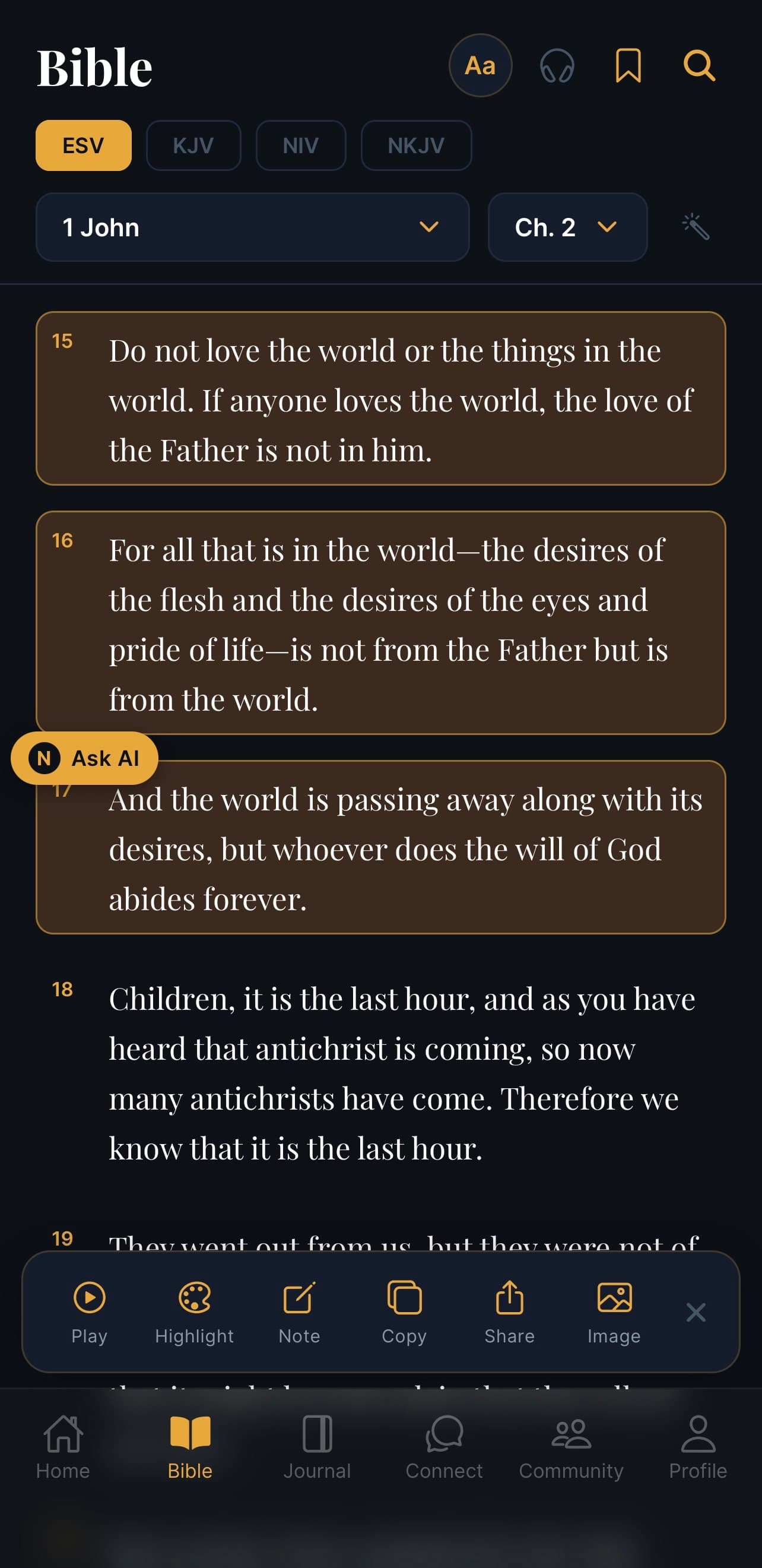
What this screen is for
The Bible tab is where you actually read scripture in North Star. You can pick the translation that suits you, jump to any book and chapter, and use the small toolbar at the top for extras like text size, audio, bookmarks, and search.
When you long-press (or tap) on a verse, a row of actions appears so you can highlight, take a note, share it, or ask the AI about it — without ever leaving the page.
The top controls
Translation switcher
The four pills near the top — ESV · KJV · NIV · NKJV — let you switch translation in one tap. The one in gold is the one you're currently reading.
Book and chapter
Underneath, two drop-downs let you jump anywhere in the Bible:
- Book (e.g. 1 John) — tap to see every book of the Bible.
- Chapter (e.g. Ch. 2) — tap to pick a chapter inside that book.
The small wand icon to the right opens a quick "go to verse" helper.
Top-right tool row
- Aa — change the reading font and text size.
- Headphones — listen to the chapter read aloud.
- Bookmark — save the current chapter so you can come back to it.
- Search — find a word or phrase anywhere in the Bible.
Reading and tapping a verse
Tap (or long-press) any verse and a toolbar appears across the bottom with six actions:
- Play — read this verse aloud.
- Highlight — colour the verse so it stands out next time.
- Note — write a private note attached to this verse.
- Copy — copy the text to share elsewhere.
- Share — send the verse via your phone's share sheet.
- Image — turn the verse into a beautiful shareable verse card.
Tap × to close the toolbar.
The "Ask AI" floating button
Next to a verse you'll sometimes see a small gold "Ask AI" badge. Tap it to ask the AI companion about that exact verse — what it means, the context, or how it applies today. The conversation opens in the Connect → Ask tab with the verse already attached.
Common questions
Q: Can I read offline? Yes — once you've opened a chapter in a translation, North Star keeps it on your device.
Q: My favourite translation isn't in the pills. Tap the Aa icon to open the full translation list. The four pills are just shortcuts to your most-used translations.
Q: How do I see my highlights again? Open Profile → My Highlights for a list of every verse you've highlighted.
Q: How do I see my notes again? Open Profile → My Notes.
Q: Can I make a verse card without long-pressing? Yes — open any verse, then Image from the action bar.